BYOIP to VMware Cloud on AWS Reference Architecture Published

I recently authored this AWS Reference Architecture which describes how to Bring Your Own IPv4 address to VMware Cloud on AWS using AWS Cloud.

This was driven by AWS customers wanting to migrate hundreds of legacy applications into VMware Cloud on AWS that have a static public IPv4 address constraint. They could not use the DHCP function from Amazon’s pool of public IPv4 addresses that VMware Cloud on AWS supports.

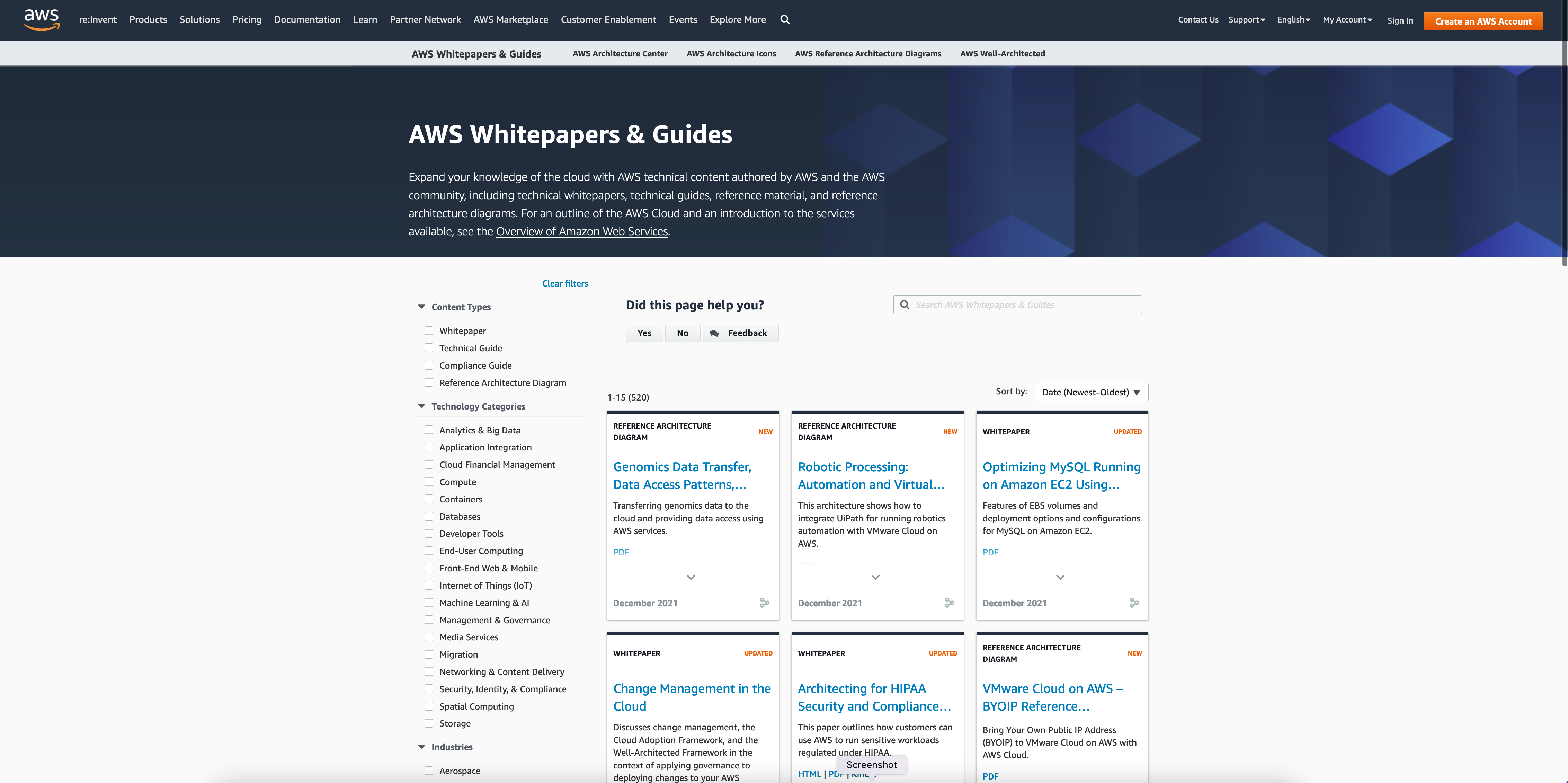
For more AWS goodness, you can access the AWS Whitepapers and Guides portal, which includes Reference Architectures and Technical Guides.

Advanced Design VMware Cloud Management & Automation 2021 Exam (3V0-32.21) Study Links

I took the Advanced Design VMware Cloud Management & Automation 2021 Exam recently and these are the study links I used:

Advanced Design VMware NSX-T 3.0 Exam (3V0-42.20) Study Links

I took the Advanced Design VMware NSX-T 3.0 Exam recently and these are the study links I used:

Advanced Design VMware vSphere 7.0 Exam (3V0-21.21) Study Links

I took the Advanced Design VMware vSphere 7.0 Exam recently and the VMware Exam Guide did not have active resource hyperlinks in the PDF. Here they are, plus some additional ones I used:

Intel NUC 9 Extreme for VMware ESXi

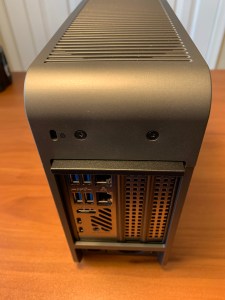
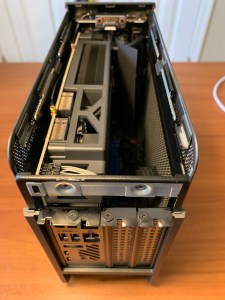
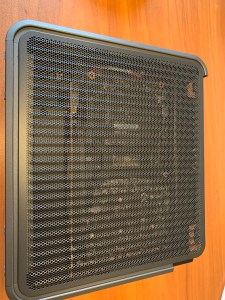
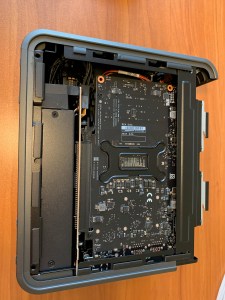
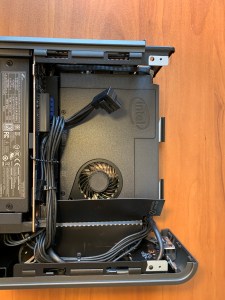
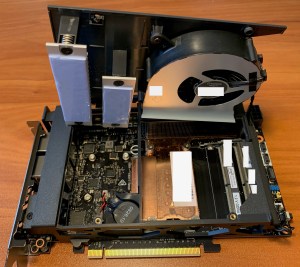
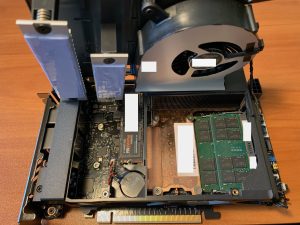
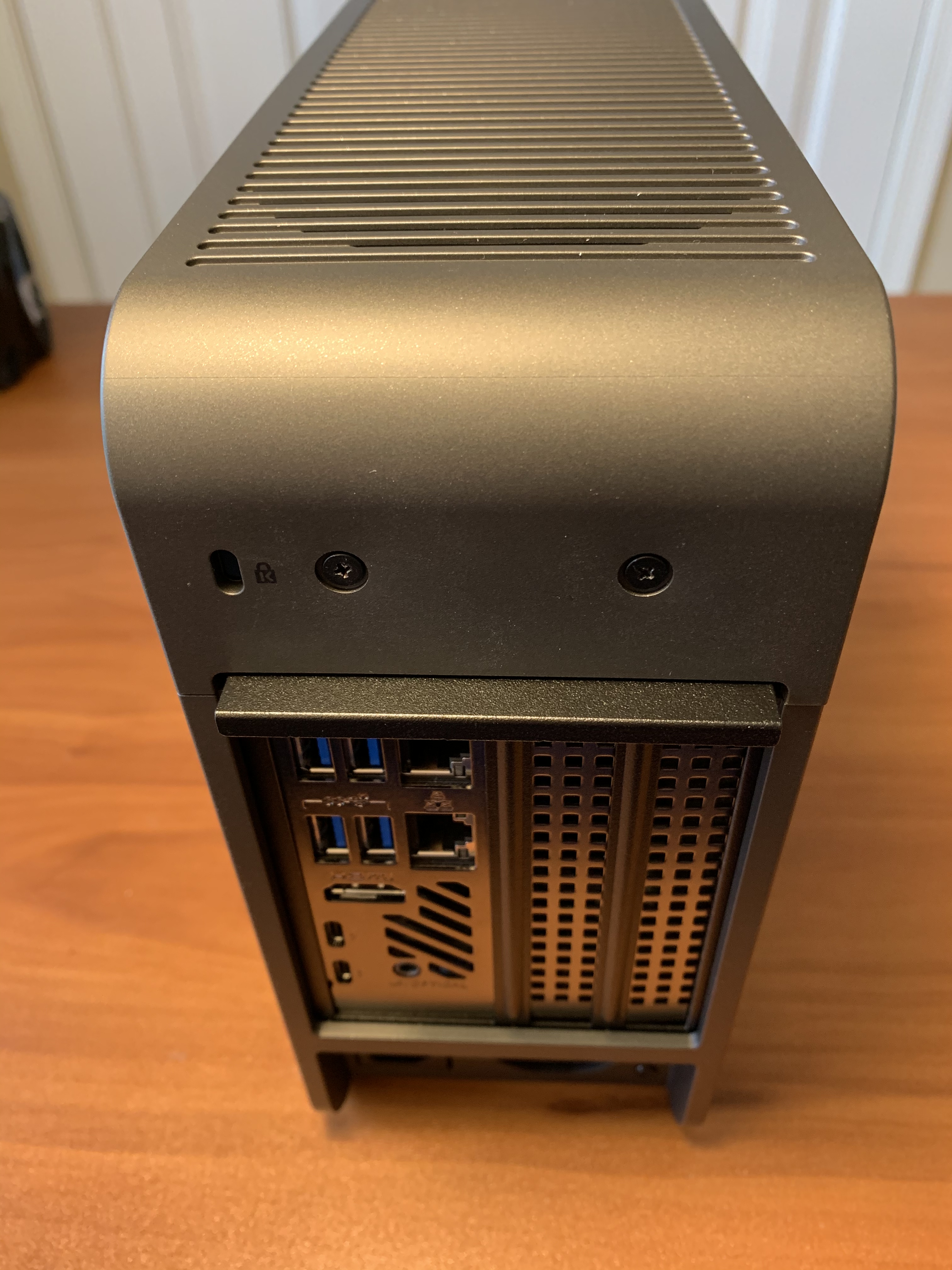
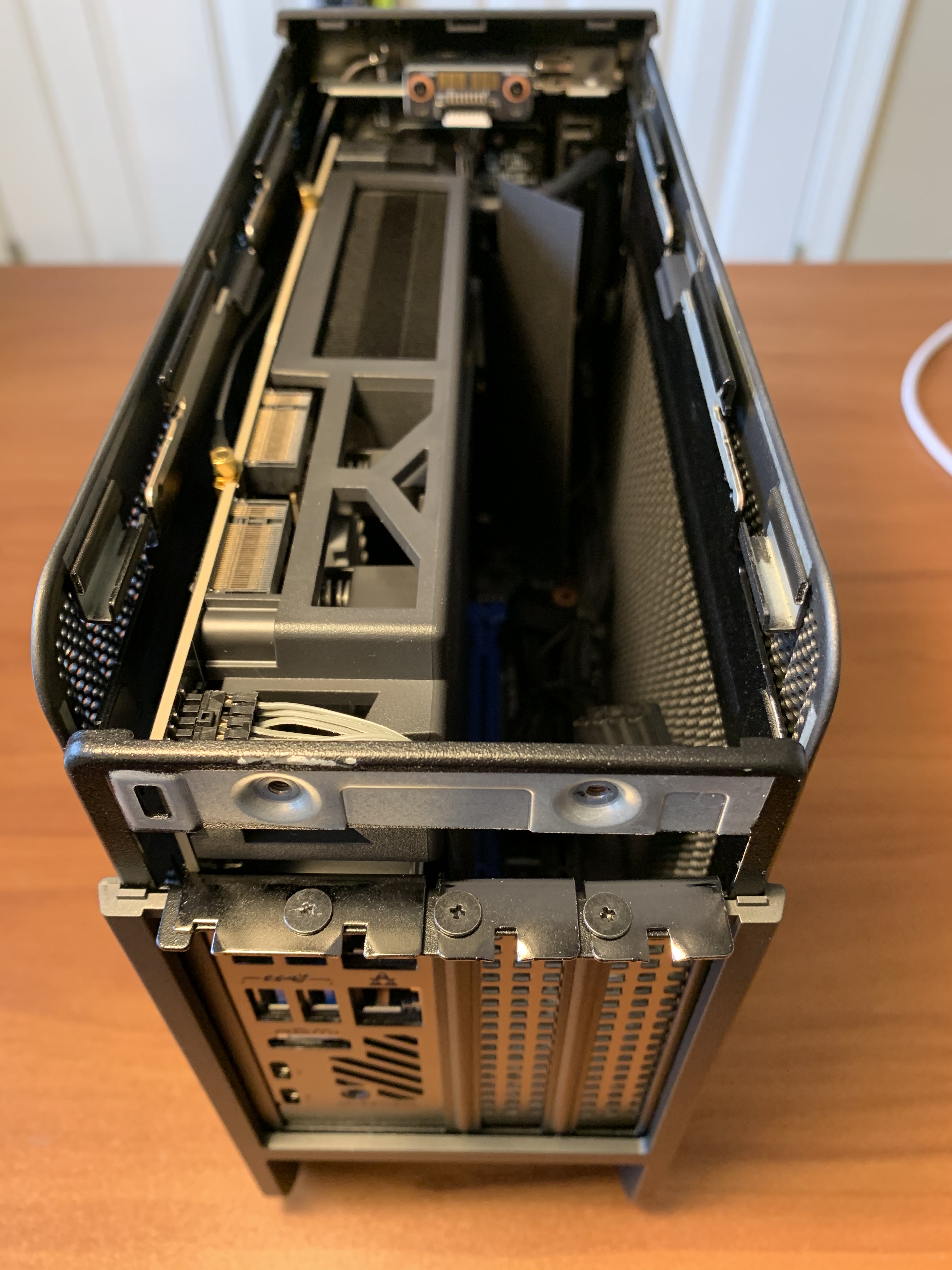
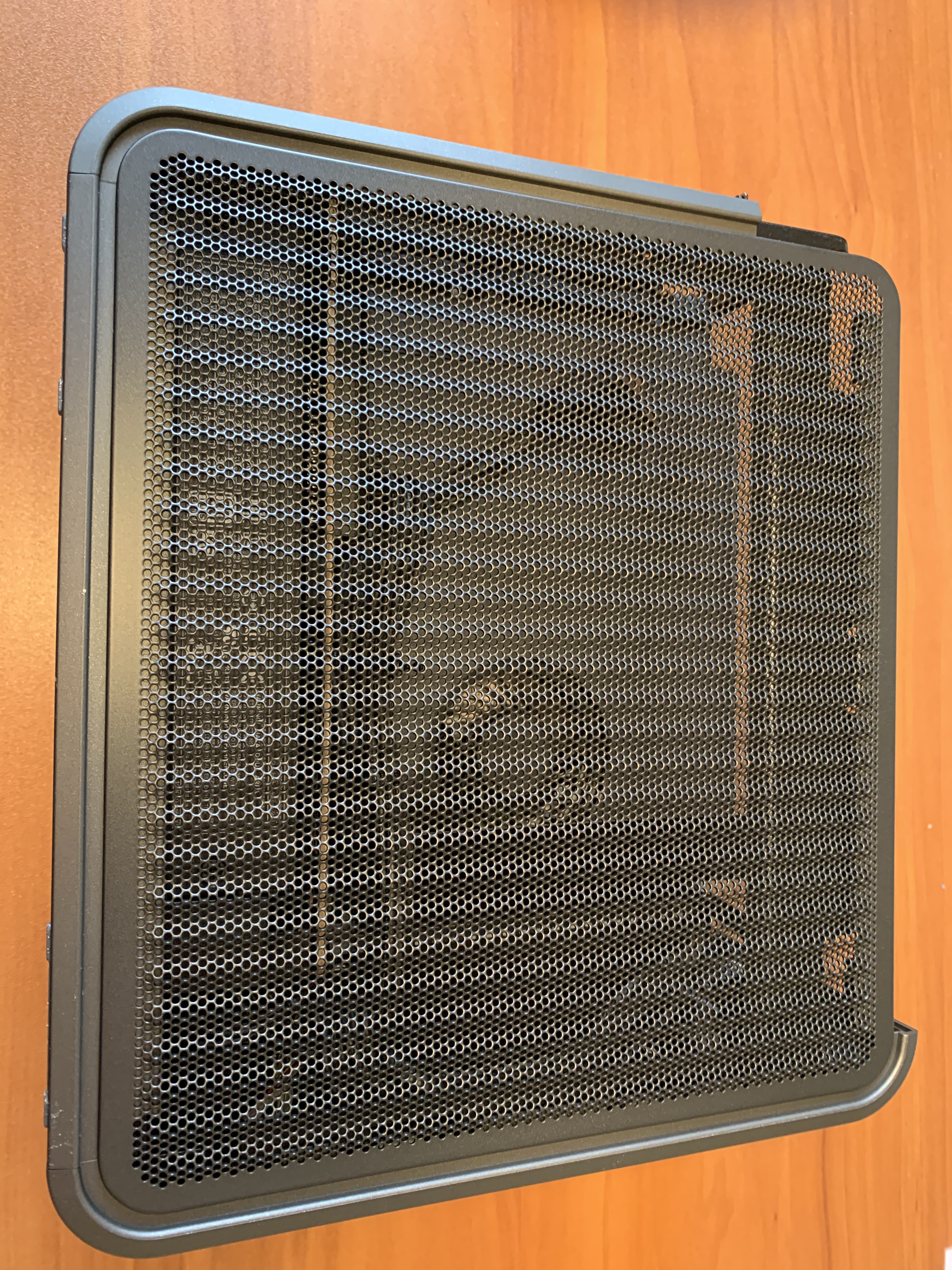
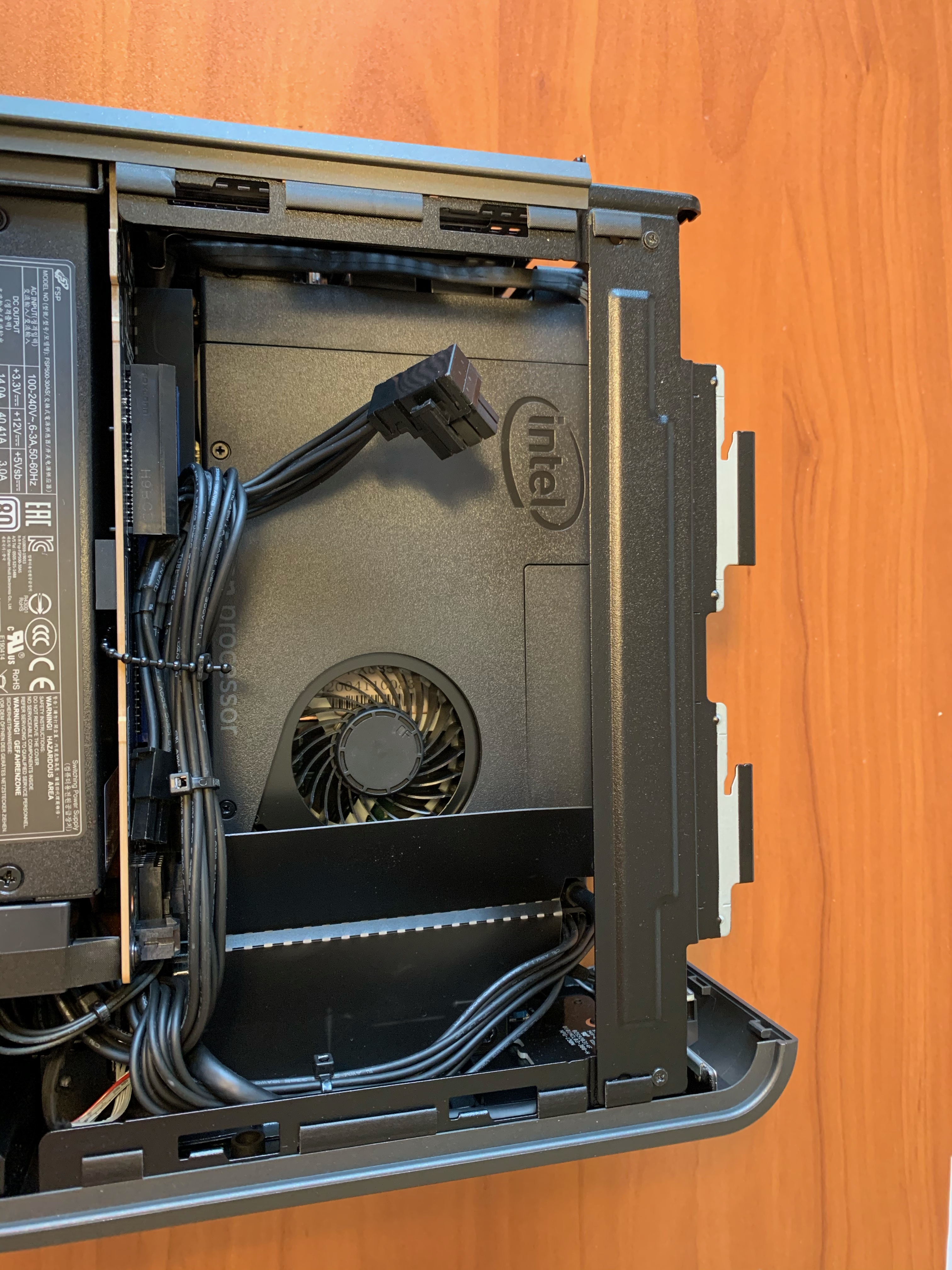
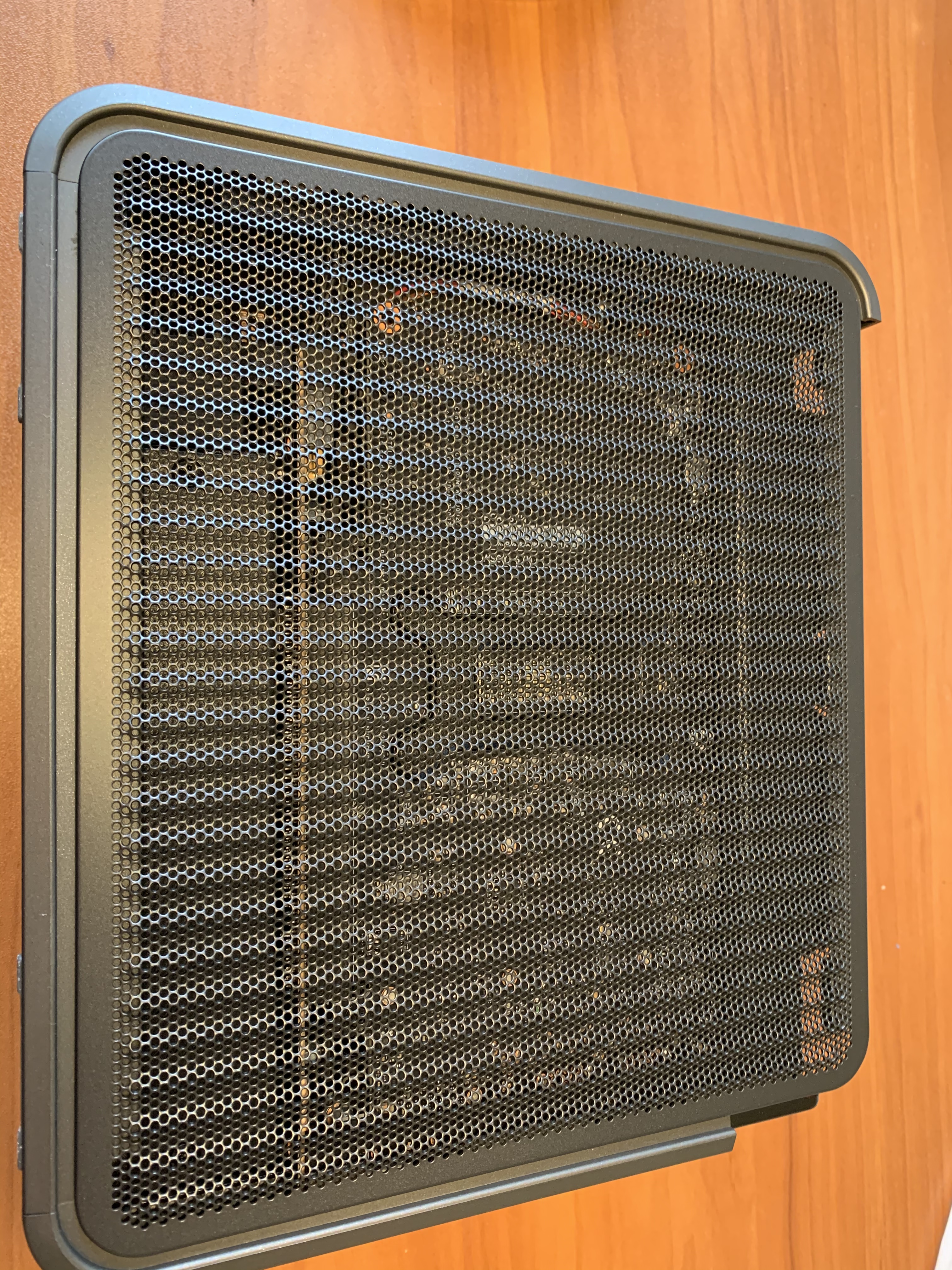
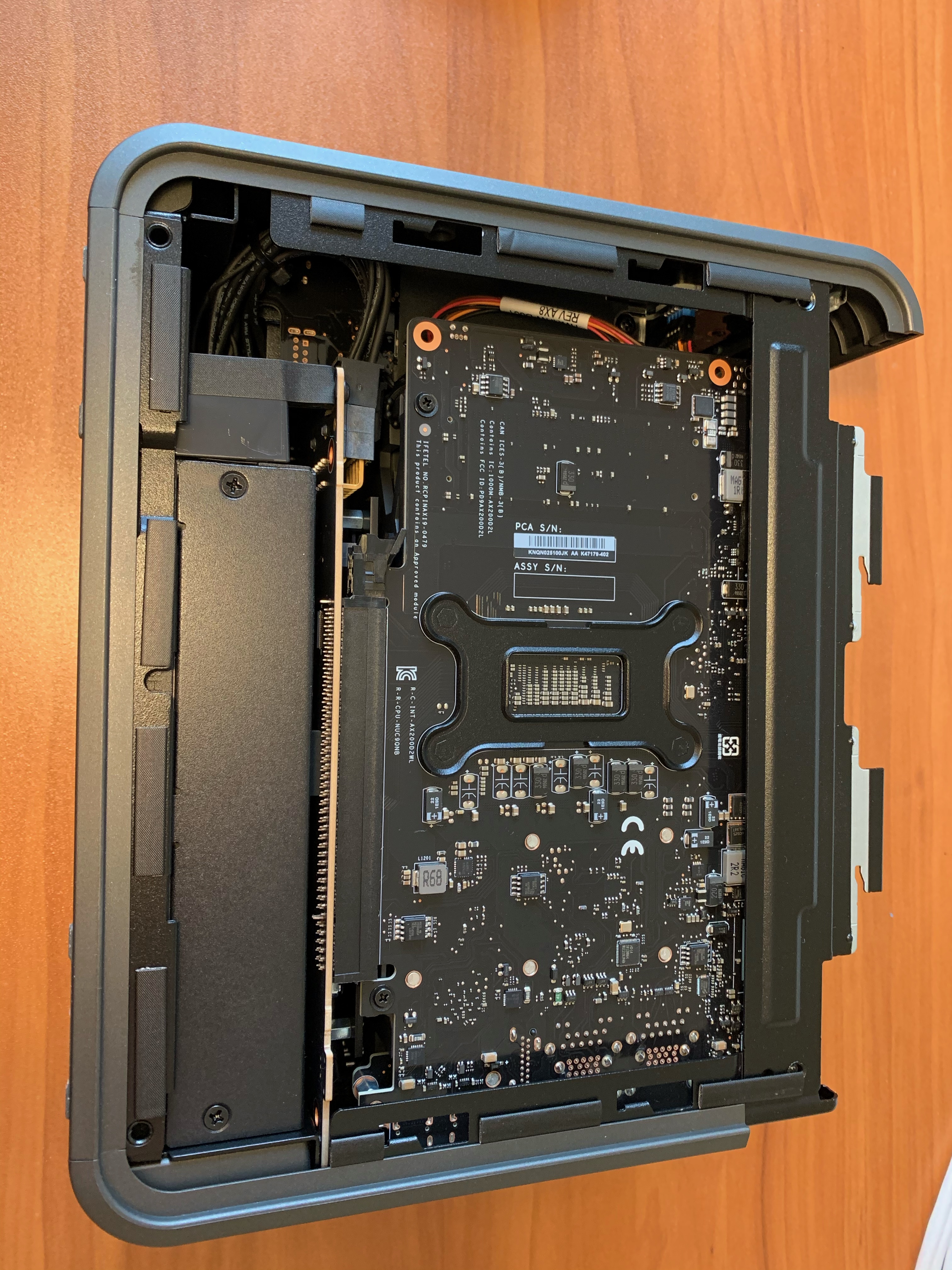
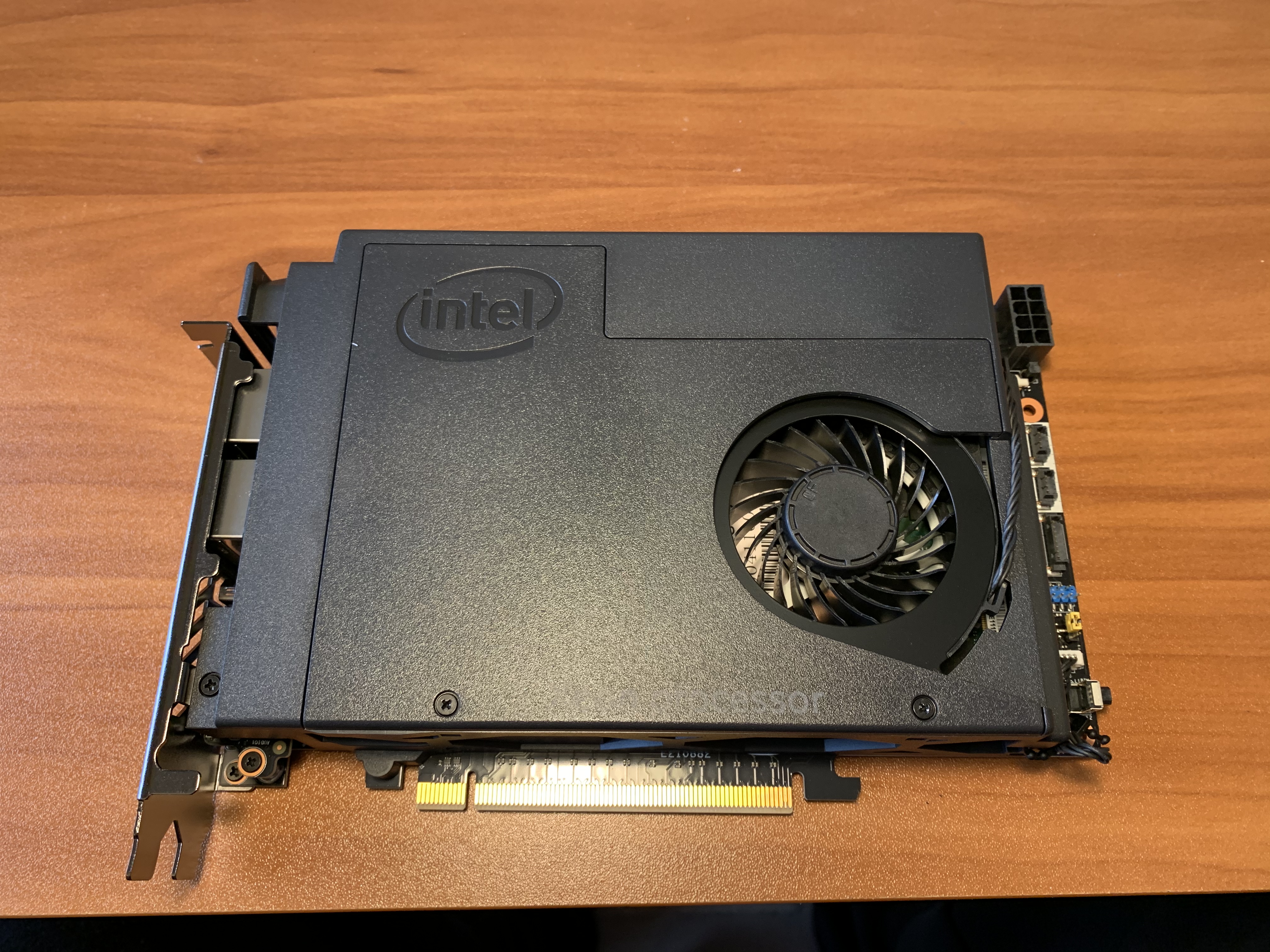
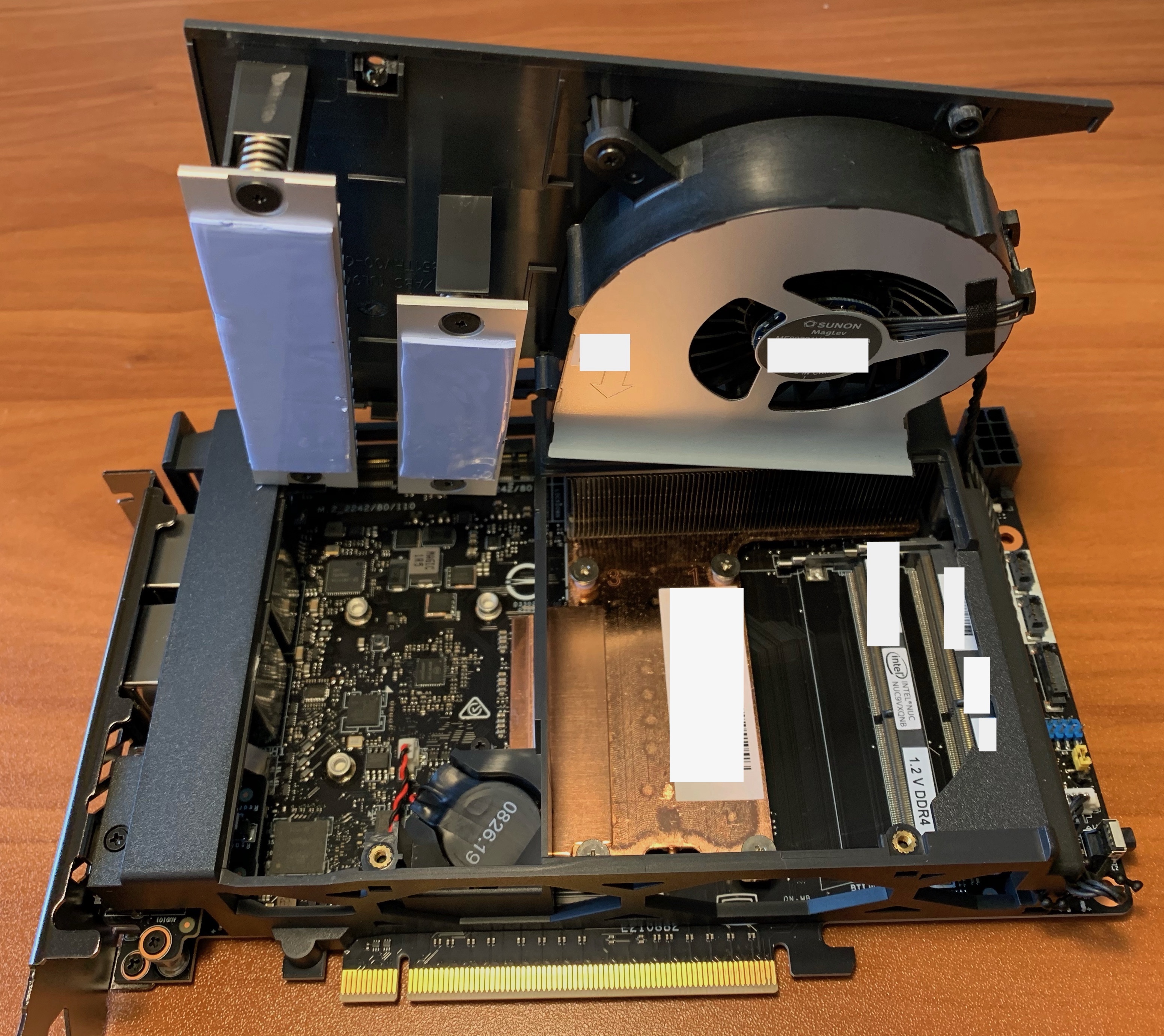
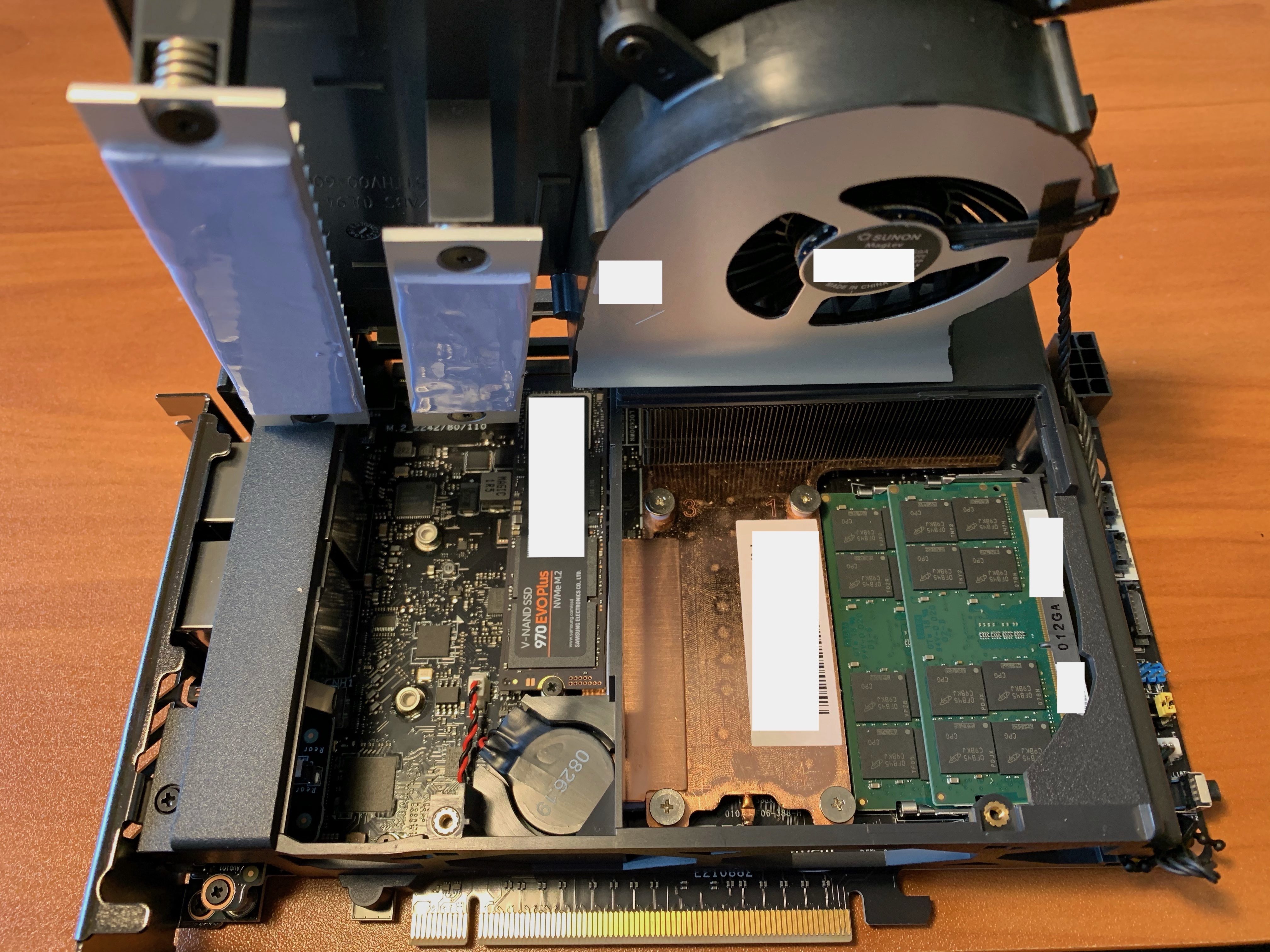
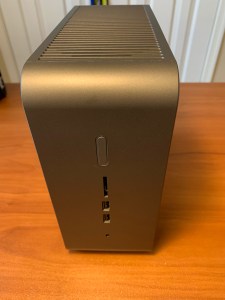
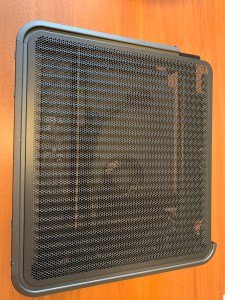
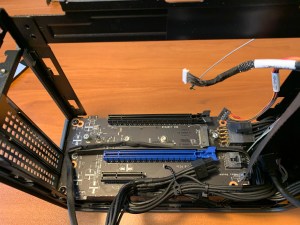
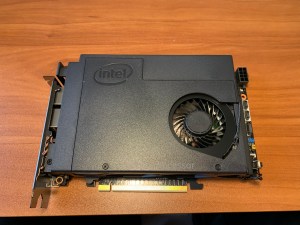
I recently setup an Intel NUC 9 Extreme with ESXi and found the included printed instructions a little vague. Here are some photos to show what the internals look like and where to install the RAM and NVMe M.2 devices.

What I like about the Intel NUC 9 Extreme:

  • Very compact form factor with loads of options
  • Has the NUC9VXQNX option for Intel Xeon E-2286M CPU 8 core (16 H/T) @ 2.4GHz Processor
  • Has Slots for 3 NVMe M.2 Devices (needed for vSAN config)
    • 1 Baseboard slot for ESXi Boot (42/80/110mm slot)
    • 2 Intel CPU Module Slots for vSAN Cache and Capacity drives (42/80/110mm slot & 42/80mm slot)
  • Supports up to 64GB SODIMM RAM
  • Two additional PCIe Slots for GPU & more NICs, if required
  • Has two USB-C ports for 10GbE adapters, if required
  • Two onboard 1GbE ports for management vmnics
  • ESXi 7.0.1 installs cleanly and runs without extra customization
  • Only need a small Phillips head screw driver to disassemble the NUC and install the RAM and NVMe M.2 devices

Intel NUC 9 Front, Rear and with top cover off
Intel NUC 9 sides with covers on and off
Intel NUC 9 Baseboard (with NVMe M.2 device heat-sink removed) and Intel CPU Module with SODIMM RAM modules and NVMe M.2 devices installed


VMC on AWS Link-O-Rama

The VMware Cloud on AWS Link-O-Rama Resource Page

This is an aggregation of resources for VMware Cloud on AWS and the 3rd party solutions that support the platform. If I have missed any other resources, reach out to me on Twitter and I will add them. This page will continue to evolve over time and fresh content will be marked as “NEW!”.

Official VMware Cloud on AWS Resources

Official AWS Resources for VMware Cloud on AWS

Official VMware Cloud on AWS Outposts Resources

VMworld Sessions

AWS re:Invent Sessions

VMC on AWS Blogs

VMC on AWS Videos

  • COMING SOON

3rd Party Integrations to VMC on AWS

VMC on AWS Training & Certification

Additional VMware Cloud Integrations

Additional AWS Cloud Integrations

vSphere 7.0 Join AD Error Code 1225

This post is applicable to customers using VMware vSphere 7.0 trying to join AD 2016 running on Windows Server 2019.

Problem:

  1. When trying to join AD from vCenter Server 7.0 via the vSphere Client, the error message “lcm client exception: Error trying to join AD, error code [1225], user [xyz], domain [xyz], orgUnit [xyz]” is reported. When using the “/opt/likewise/bin/domainjoin-cli join <domain> <user>” command, the error message “ERROR_CONNECTION_REFUSED code 0x4c9” is reported. The same domainjoin-cli message is also reported by ESXi. Note that 1225 is 0x4c9 in hexadecimal.

Solution:

  1. The AD Windows Servers need to have the Network Ethernet properties set to include the “Client for Microsoft Networks” and “File and Printer Sharing for Microsoft Networks” options enabled.
  2. Execute the Join AD procedure again and it will complete successfully.

Background: